What’s new in update 25: zoom and pan, data binding, EMF and PDF output

Update 25 of the SVG control library for Delphi and Lazarus is a large update containing many improvements and new functionality: drawings can now be zoomed, panned and bound to data in every control. Render contexts can now be switched within an application, for example use Direct2D to render to the screen or PDF and GDI+ to render to EMF. Rendering accuracy for all render contexts including the new Skia render context is significantly improved. This post walks through the most important changes. The complete list is in the change log.

Zoom and pan integrated in SVG controls

Every control can now be zoomed and panned with a few properties and methods. Set ZoomFactor in the Object Inspector, let users zoom with the mouse wheel and drag to pan, or call ZoomToFit, ZoomToRect and ZoomToElement from code. ClientToSVG and SVGToClient convert between mouse and drawing coordinates, and OnViewChanged tells you when the view changes.

Clip paths, masks, group opacity and filters render correctly at any zoom level, and their offscreen buffers are limited to what is visible, so zooming deep into a large drawing stays fast. The same works on VCL, FireMonkey and Lazarus.

Lines drawn with vector-effect: non-scaling-stroke keep the same width on screen at any zoom, as in a browser. FreeCAD and Inkscape write it for hairlines, so the thin lines of a technical drawing stay thin when you zoom in, instead of growing into bars.

Zoom and pan in the guide · Examples: ZoomAndPan (VCL, VCL with TSVG2WinControl, FMX and Lazarus)

Data binding in every control
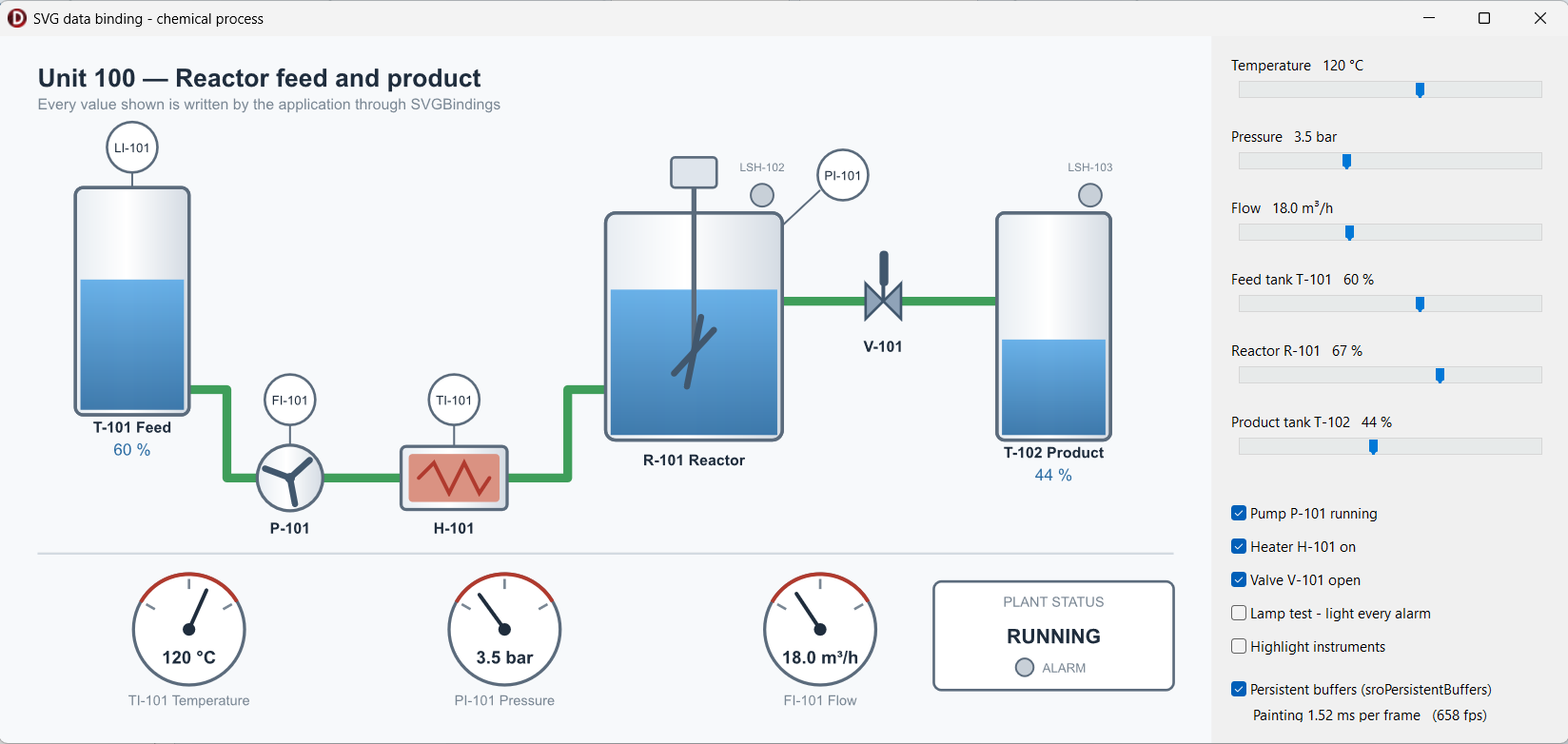
Databinding example of chemical process

Data binding used to be a separate add-on control. It is now part of the core package, and every control on VCL, FMX and Lazarus has a SVGBindings collection. A binding selects elements by id, tag, class or attribute and writes an attribute or the text content: a valve turns red when it closes, a label shows the latest reading. Bindings are set up in the Object Inspector or from code, and survive loading another drawing.

New functions FindElements, FindElementsByTag, FindElementsByClass and FindElementsByAttribute find the elements you want to change from code.

Data binding in the guide · Finding elements · Examples: DataBinding, ExamplesFromDoc (finding elements)

Hit testing follows the SVG specs more closely

Hit testing was reworked so that ObjectAtPt and the SVG mouse events use one and the same test, and it now follows the rules of a browser: hidden elements, pointer-events=”none” and clipped-away parts are not hit, the whole width of a stroke is, and shapes filled with a gradient or pattern, lines and images can be clicked. Text is hit on its character cells instead of on the ink of each glyph, so a click between two letters still counts.

Hit testing · SVG events · Examples: Events, ExamplesFromDoc (element under the mouse pointer)

EMF, PDF and print output

  • EMF export from any build. The new unit BVE.SVG2ExportEMF.VCL writes a vector EMF file for Word, Excel, PowerPoint and report tools, while your screen keeps rendering through Direct2D. Text can be written as real text or as paths.
  • Draw into an existing canvas. SVGRenderToCanvas draws a drawing into a rectangle of a canvas that already has content, such as a report band or a grid cell. On a printer or metafile canvas it stays vector graphics.
  • Real size. SVGRenderAtRealSize prints a drawing at its real size: width=”100mm” prints 100 mm wide. SVGRenderToBitmapDpi does the same for bitmaps at a given resolution.
  • Unattended PDF. CreatePrintJob takes an output file name, so a PDF or XPS file can be written without the save dialog, for example from a service.
  • Better PDFs. Text in a PDF stays selectable and searchable and keeps the exact position of every character. Filters, masks and clip paths on a print page are rendered at printer resolution instead of at 96 dpi.

EMF · PDF · Printing · Examples: RenderToEMF, PrintPreview (VCL, FMX and Lazarus)

Switch render contexts within an application

A document can now render through a different render context for a single pass, for example to EMF through GDI+ while the screen renders through Direct2D, without recompiling. The font system can be chosen at run time too, and a project can pick its own render context and font system with one define, without editing the package’s settings files.

Choosing a render context · Example: RenderToEMF, which writes EMF through GDI+ from a Direct2D application

Fully developed Skia render context

The Skia graphics library can now be used as a render context, with VCL and with FireMonkey on Windows and macOS. Of all render contexts it is the closest to what a browser shows. TSVGPrintJobSkia writes a PDF with selectable text directly through Skia, without a printer driver.

More SVG and CSS

  • mix-blend-mode with all sixteen blend modes, and paint-order
  • CSS custom properties, var() and light-dark(), !important and :root
  • vector-effect: non-scaling-stroke, for lines that keep their width at any zoom
  • mask-type, dominant-baseline and alignment-baseline, hsl() and hsla() colours
  • Font substitution: a font that is not installed is replaced by one with the same widths, for example Helvetica by Arial
  • Fixes for drawings from Visio and Figma, and for several filters

To see how your own drawings render, open them in the Viewer (VCL, FMX and Lazarus), or the ready-built Win64 viewer on the demo page.

Also improved

  • Path metrics: a path can be retrieved flattened to line segments, and every backend measures path length the same way.
  • Documents saved from code are valid XML in all cases, and changing class or id from code re-applies the style sheet.
  • OnParseError on all controls tells the application when a drawing fails to load.
  • The parser and render threads are safer, and the package works in DLLs and threads without COM errors.
  • The Lazarus package compiles out of the box again, loads resources over http and https, and has the same zoom, pan and binding features as VCL.

New online documentation

The old single-page manual has been replaced by an online guide and API reference: practical sections on loading drawings, changing them, making them interactive, getting output and shipping your application, plus a reference for every interface in the library.

Upgrading

A few changes can affect existing code: the separate binding control was removed in favour of the bindings in every control, ObjectAtPt no longer returns hidden or clipped elements, and GDI+ print pages now work in 1/96 inch like Direct2D. The list, with what to change, is under “Breaking changes” in the change log and in Upgrading.

The new examples on GitHub show data binding, zoom and pan on VCL, FMX and Lazarus, and EMF export.

Update 26, released a day later, fixes an access violation when zooming into some drawings; it contains everything described here. License holders can download update 26 with their license key. To try it first, get the free demo.
SVG and Claude

How well does Claude perform on converting bitmap images to SVG? I probably shouldn’t have been surprised that also in this area it does a very decent job. Maybe it is my age, but I am still a bit hesitant on using AI, although when in comes to programming, there is no denying that AI tools like Claude have become very very good. So how does it perform on SVG?

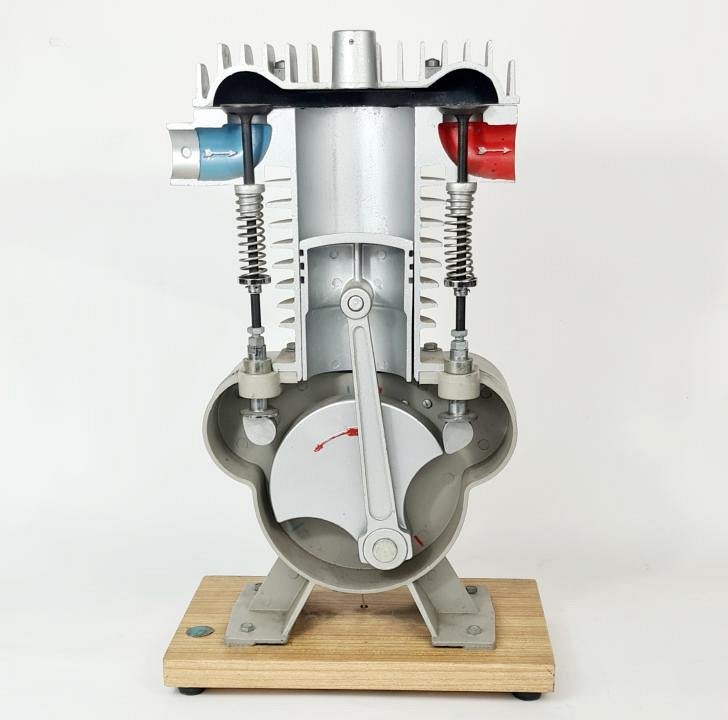
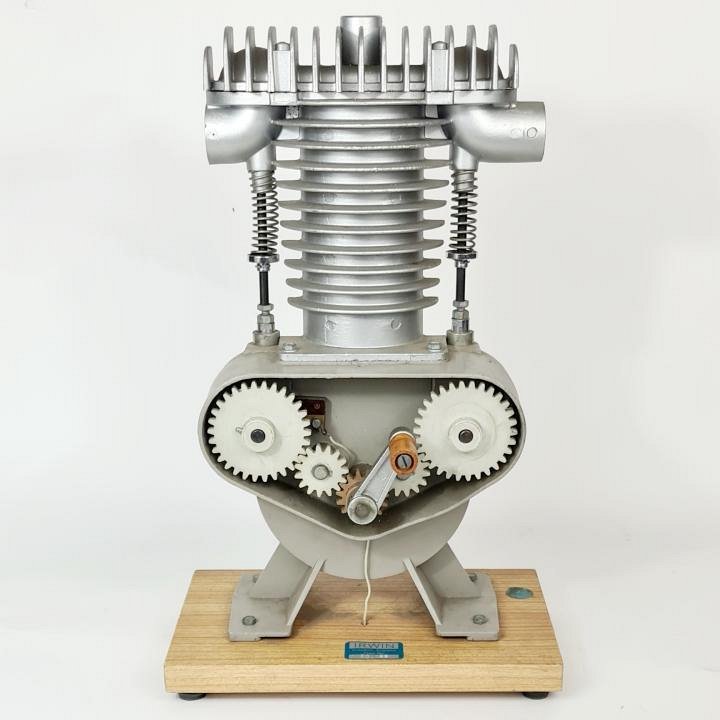
I found this jpeg image of a diesel engine model.

Then I asked Claude (Opus) the following question:

“File [Image #2] is a picture of a diesel engine. Can you convert this to an animated SVG file?“

Claude:

“That’s a nice single-cylinder demonstration engine — finned head and barrel, two spring-loaded pushrods, and an exposed gear train driving the cam gears. I’ll build a stylised vector version of that composition with the mechanism animated (SMIL, so it works both in a browser and in your control).”

I already find amazing that Claude can recognize all that from a bitmap image. Then, after 8min 48s it produced the following SVG:

Overall I think this is a nice result. It figured out the moveable parts and their functions and how they should interact. I think the cylinder head especially the in- en output pipes could be improved upon.

Claudes own assessment on the conversion:

“It’s a stylised reconstruction, not a trace. I matched the composition, proportions and palette — finned head with the comb fins on top, side ports, finned barrel, gear housing with the dark opening, splayed legs, wooden base with the blue plate — but every shape is drawn from primitives. A faithful trace of the photo’s castings would need an autotrace pass over the bitmap, which produces thousands of unlabelled paths you can’t animate. Tell me if you’d rather have that instead.”

Next I asked to convert another image:

“Can you make a SMIL animated SVG file from [Image #3]“

Claude:

“Excellent — this cutaway is a much better animation subject, since the actual slider-crank is visible. I’ll compute real slider-crank kinematics and bake them into the SMIL values lists so the piston and con-rod move exactly right.”

Result after 7min 12s::

This is not quite right, the push rods for the valves don’t function correct and the drive shaft rotates the wrong way.

I asked Claude to fix the errors:

“There are some errors in the SVG. The first error is that the drive shaft rotates in the wrong direction, the red arrow in the picture shows the direction it should turn. Also you didn’t model the arrow correct in the SVG. The second error is the animation of the valve push rods. These should be pushed from below, against the upper constraints. The pushing from below should be done by the camshaft of which the ends we see in the picture and on the ends are the cam lobes that you also did not include in the SVG.”

Claude:

  1. Rotation direction — flip the crank to counter-clockwise, and draw a proper arrow instead of my scribble.
  2. Push rods pushed from below — the assembly must travel up against a fixed upper spring seat, not down.
  3. Missing cam lobes — those are the camshaft ends in the crankcase lobes; I’ll model real lobes and derive the lift from the actual profile.

Better, though I am not really happy with the valves because they don’t really open and close the input and output, but I will leave that for now.

Next I am interested in building a Delphi application with the SVG library in which I can interact with the SVG. So my question to Claude:

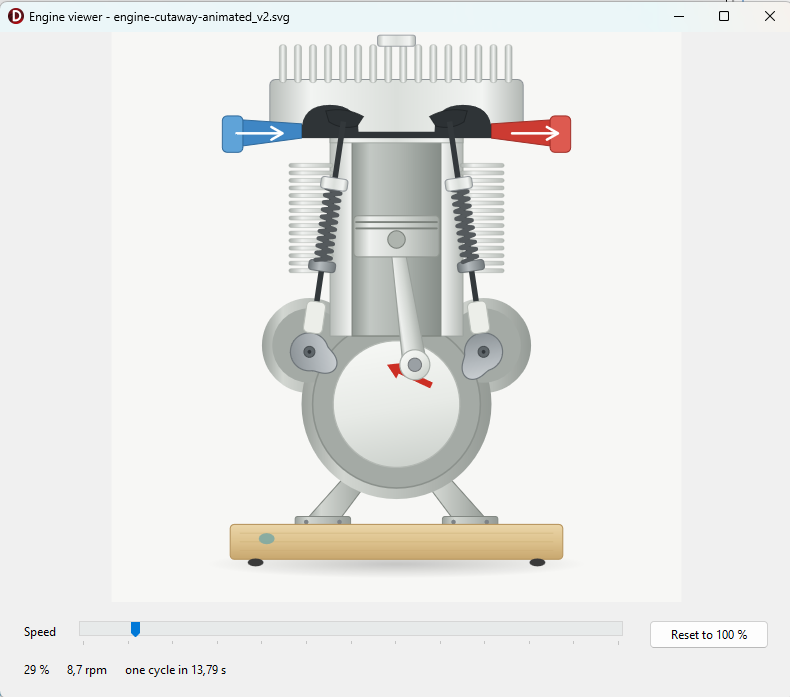
“I would like to create a Delphi VCL application in which the SVG is displayed in a TSVG2Image control and in which i can control the rotation speed of the engine by a TTrackBar control.”

After 8min 27s Claude produced this application, which indeed works:

Finally I want to combine the two SVG’s into one:

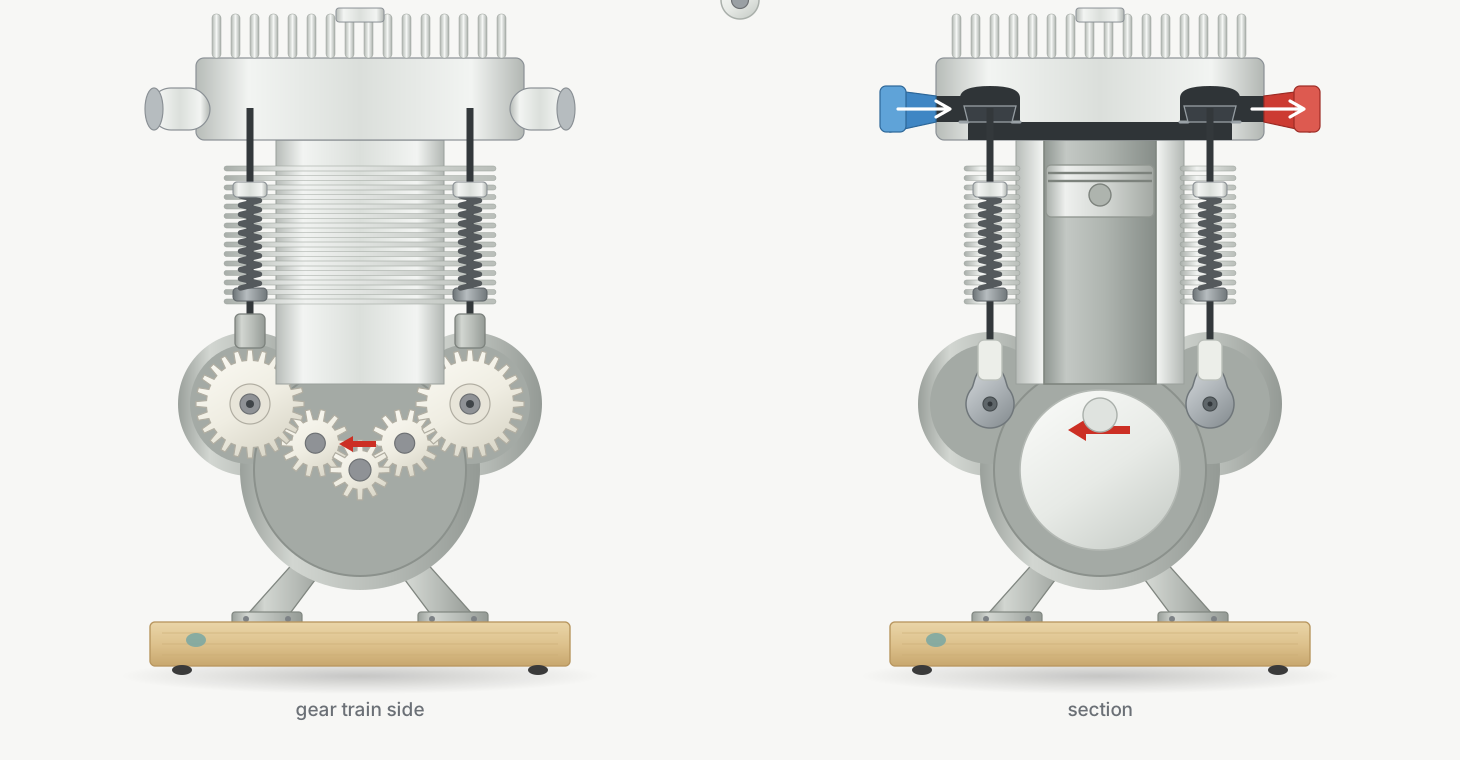
“Can you now combine diesel-engine-animated.svg with engine-cutaway-animated_v2.svg in one svg in which the models are placed side by side. All the parts should match in position and movement. The new SVG should be used in the EngineViewer application. Make sure the valves really close the input and output openings, they currently overshoot the openings.”

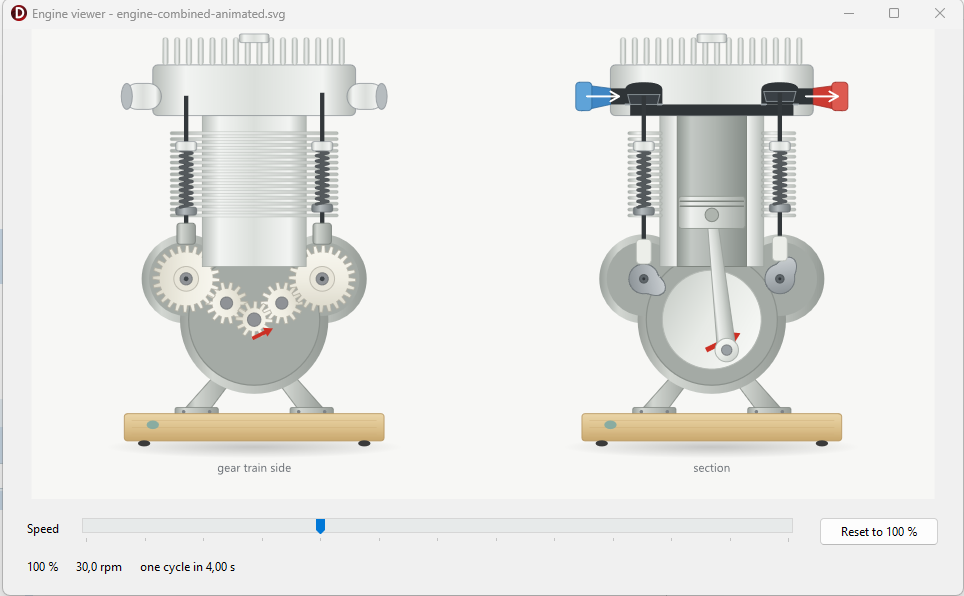
After 16min 7s the following SVG:

You could argue that the engines should rotate in opposite directions, but Claude made this intentionally:

“One thing I decided rather than asked: both views turn the same way. Strictly these are opposite sides of one engine, so the gear-train side would turn mirrored. I kept them visually identical since “match in movement” reads as phase agreement, and opposing arrows would look like a mistake. Say the word if you’d rather have the true mirrored direction — it’s a one-line change to the left view’s spin.”

And the application:

You can find the SVG files and EngineViewer project on github.

Concluding, my observation is that Claude is very capable in creating SVG images from bitmap images. The amazing thing for me is that it can figure out what a bitmap image represents. The job of constructing the SVG is somewhat less surprising to me because SVG is a more structured format and looks a bit more like programming.

Claude makes mistakes, that is obvious, so fortunately we humans are still needed. In my experience with Claude, it will try to do exactly what you ask but often makes suggestions or assumptions where you are not explicit and these I often find helpful, so I often keep some room for maneuver in my initial question and make my follow op questions more explicit.

Implement Zoom And Pan on TSVG2Image

This example shows how Zoom and Pan can be implemented on the TSVG2Image control.

In SVG zooming and panning is controlled by the viewPort, viewBox and preserveAspectRatio attributes on the outer SVG element.

The outer SVG element is the first SVG element in the xml file. In most cases, there is only one SVG element within an SVG xml file.

View port

The viewPort is the window in which the SVG image is displayed. The viewPort is defined by the dimensions of the outer SVG element, so the width and height attribute or, if width and height are expressed as percentages, the client rectangle of the SVG’s container.

For our purposes we will override the width and height attributes of the outer SVG element and set them to 100%, so width = 100% and height=100%. With these settings the viewPort will be equal to the ClientRect of the TSVG2Image control.

View box

The viewBox attribute selects the part of the SVG image that is displayed. This is an optional attribute, not all SVG images have a viewBox defined.

For zooming and panning we need a viewBox, so if the SVG image has no viewBox defined, we will create one and initially set it to the same size as the viewPort.

Preserve aspect ratio

The preserveAspectRatio defines how the viewBox is aligned within the viewPort. We want to preserve the aspect ratio of the SVG image and we want the center it. For this we need the setting xMidYMid.

Basics of zooming and panning in SVG

For zooming and panning an SVG image we only need to modify the viewBox attribute.

For panning we simply change the top left point of the viewBox rectangle.

For zooming we change with equal proportion the width and height of the viewBox rectangle. The smaller the viewBox, the more we are zooming in.

Structure of the example application

  • A form with on it one TSVG2Image set to align “alClient” to the form
  • Property “DoubleBuffered” on the form is set to “True”, to ensure smooth zooming and panning
  • Property “AutoViewbox” on the TSVG2Image is set to “True”, so the width and height of the outer SVG will be automatically set to 100%
  • Property “AspectRatioAlign” will be set to “arXMidYMid” to preserve the aspect ratio of the SVG image and center it within the viewPort.
  • Property “AspectRatioMeetOrSlice” can either be “Meet” or “Slice”
  • Event “OnAfterParse” on TSVGImage will be used to read the “viewBox” attribute from the outer SVG element and store it in form variable “FViewBox”. If it does not exist, we will initialize FViewBox with the size of the viewPort.
  • Event “OnDblClick” on TSVGImage will allow loading of a new SVG image
  • Events “OnMouseDown”, “OnMouseMove” and “OnMouseUp” on TSVGImage will be used to pan the SVG image. Panning will be proportional to the zoom level.
  • Event “OnMouseWheel” on the form will be used to increase or decrease the zoom on the SVG image. The focus of the zoom will be the position of the mouse pointer on the SVG image.

So after creating the application project and setting the properties on the form and the TSVG2Image we need to implement the event handlers.

OnAfterParse

After parsing the SVG xml file an in-memory node tree data structure will be available for us to read and modify SVG elements attributes.

We can access the element nodes through the TSVG2Image “SVGRoot” property.

The “SVG” property of SVGRoot will point to the outer SVG element of the SVG image.

In the code below, we assign the viewBox attribute value to the form variable FViewBox. If no viewBox is defined on the outer SVG we initialize FViewBox with the size of the viewPort.

procedure TForm1.SVG2Image1AfterParse(Sender: TObject);
var
  SVG: ISVG;
  CR: TRect;
begin
  if not assigned(SVG2Image1.SVGRoot) then
    Exit;

  SVG := SVG2Image1.SVGRoot.SVG;

  if not assigned(SVG) then
    Exit;

  if SVG.ViewBox.IsUndefined then
  begin
    // No viewBox so we will create one with the same size as the viewPort.
    // The viewPort is defined by the dimensions of the outer SVG element.

    CR := SVG2Image1.ClientRect;

    FViewBox := SVG2Image1.SVGRoot.CalcIntrinsicSize(SVGRect(0, 0, CR.Width, CR.Height));
  end else
    FViewBox := SVG.ViewBox;
end;

Utility functions

The basis for all calculations in the application is the conversion from Mouse point to ViewBox point. The formula for this depends on the preserveAspectRatio settings. If you choose an other setting than xMidYMid the calculations will be different.

CalcZoomFactor

First we create a function to calculate the current zoom factor.

Depending on the preserveAspectRatio setting “Meet” or “Slice” and the aspect ratios of the viewBox or the viewPort, the zoom factor is calculated from the width or height ratio between the viewBox and the viewPort.

function TForm1.CalcZoomFactor: TSVGFloat;
var
  ViewPort: TRect;
  ViewPortRatioXY,
  ViewBoxRatioXY: TSVGFloat;
begin
  // This calculates the zoom factor between between the viewPort and the viewBox

  ViewPort := SVG2Image1.ClientRect;

  // We have to take into consideration the aspect ratio settings

  ViewPortRatioXY := ViewPort.Width / ViewPort.Height;
  ViewBoxRatioXY := FViewBox.Width / FViewBox.Height;

  if SVG2Image1.AspectRatioMeetOrSlice = arSlice then
  begin

    if ViewPortRatioXY > ViewBoxRatioXY then
      Result := FViewBox.Width / ViewPort.Width
    else
      Result := FViewBox.Height / ViewPort.Height;

  end else begin

    if ViewPortRatioXY > ViewBoxRatioXY then
      Result := FViewBox.Height / ViewPort.Height
    else
      Result := FViewBox.Width / ViewPort.Width;

  end;
end;

CalcViewBoxPt

Next we can create a function to calculate a viewBox point from a mouse point. This calculation is based on the xMidYMid setting.

So basically we calculate the distance of the mousepoint to the middle of the viewPort. Multiply this by the zoom factor to convert it to viewBox coordinates and then subtract it from the middle of the viewBox and finally add the top left point of the viewBox.

function TForm1.CalcViewBoxPt(const aMousePt: TPoint): TSVGPoint;
var
  ViewPort: TRect;
  Zoom: TSVGFloat;
begin
  ViewPort := SVG2Image1.ClientRect;

  Zoom := CalcZoomFactor;

  // Convert mousepoint to viewboxpoint

  Result.X := FViewBox.Left + FViewBox.Width/2 - (ViewPort.Width/2 - aMousePt.X) * Zoom;
  Result.Y := FViewBox.Top + FViewBox.Height/2 - (ViewPort.Height/2 - aMousePt.Y) * Zoom;
end;

SVGRepaint

With the SVGRepaint procedure we set the modified form variable FViewBox on the outer SVG element and force a repaint of the TSVG2Image.

procedure TForm1.SVGRepaint;
var
  SVG: ISVG;
begin
  // Get the outer SVG element

  if not assigned(SVG2Image1.SVGRoot) then
    Exit;

  SVG := SVG2Image1.SVGRoot.SVG;

  if not assigned(SVG) then
    Exit;

  // Set the viewBox attribute on the outer SVG element

  SVG.ViewBox := FViewBox;
  SVG2Image1.Repaint;
end;

Now we are ready to implement the event handlers.

OnMouseDown

On the OnMouseDown event we start panning if the left mouse button is pressed and it is not a double click.

procedure TForm1.SVG2Image1MouseDown(Sender: TObject; Button: TMouseButton;
  Shift: TShiftState; X, Y: Integer);
begin
  if (mbLeft = Button) and not(ssDouble in Shift) then
  begin
    // Save the mousedown point on mousedown

    FMouseDown := True;
    FMousePt := Point(X, Y);
  end;
end;

OnMouseMove

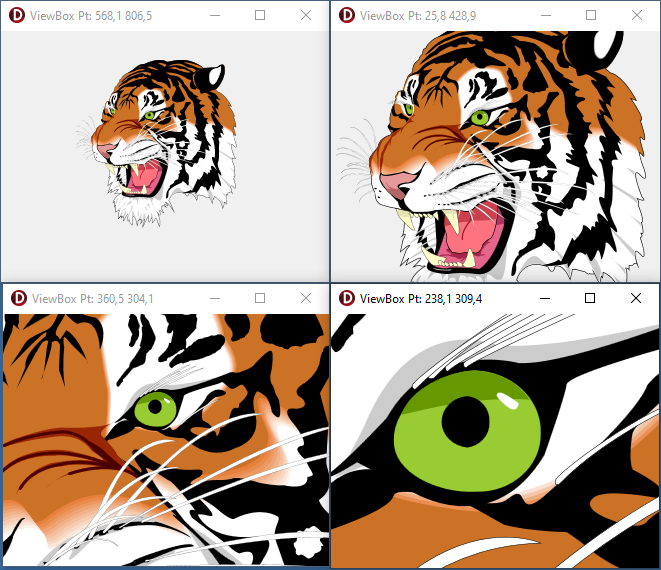
If we move the mouse we want to display the viewBox coordinates corresponding with the mouse pointer on the form caption.

If we are panning (FMouseDown = True) we calculate the new viewBox position from the delta mouse position.

procedure TForm1.SVG2Image1MouseMove(Sender: TObject; Shift: TShiftState; X,
  Y: Integer);
var
  Delta: TPoint;
  ViewPort: TRect;
  Zoom: TSVGFLoat;
  ViewBoxPt: TSVGPoint;
begin
  // Convert the mouse coords to viewBox coords and display in caption
  // Move the viewBox if the mouse btn is pressed

  ViewBoxPt := CalcViewBoxPt(Point(X, Y));
  Caption := Format('ViewBox Pt: %3.1f %3.1f', [ViewBoxPt.X, ViewBoxPt.Y]);

  if FMouseDown then
  begin
    // Compensate the mousemovent with the zoom factor so the image moves at
    // the same rate as the mouse

    ViewPort := SVG2Image1.ClientRect;

    Zoom := CalcZoomFactor;

    Delta := Point(FMousePt.X - X, FMousePt.Y - Y);

    // Calculate the new viewport position.

    FViewBox.Left := FViewBox.Left + Delta.X * Zoom;
    FViewBox.Right := FViewBox.Right + Delta.X * Zoom;
    FViewBox.Top := FViewBox.Top + Delta.Y * Zoom;
    FViewBox.Bottom := FViewBox.Bottom + Delta.Y * Zoom;

    // Save the new mousedown position

    FMousePt := Point(X, Y);

    // Set the new viewBox and repaint the SVG image.

    SVGRepaint;
  end;
end;

OnMouseUp

On the mouseup event we reset the form variables that control panning.

procedure TForm1.SVG2Image1MouseUp(Sender: TObject; Button: TMouseButton;
  Shift: TShiftState; X, Y: Integer);
begin
  FMousePt := Point(0, 0);
  FMouseDown := False;
end

OnMouseWheel

On every change of the mousewheel we increase or decrease the zoom level with a constant factor F.

  // Zoom with arbitrary factor

  Sign := WheelDelta / abs(WheelDelta);
  F := -Sign * 0.05;

So for zooming in and out we simply increase the width and height of the viewBox with this factor.

FViewBox.Width = FViewBox.Width * (1 + F)
FViewBox.Height = FViewBox.Height * (1 + F)

The challenge now is to focus the zoom onto the current mousepointer. This means that we want the viewBox point under the mousepointer to remain the same after changing the zoom level. For this we need to move the viewBox a bit after zooming. This is what we now have to calculate.

The viewBox points can be calculated from the mousepoint, in case of xMidYMid we have the following formula’s:


X = ViewBox.Left + ViewBox.Width/2 + (MouseX - ViewPort.Width/2) * Zoom
Y = ViewBox.Top + ViewBox.Height/2 + (MouseY - ViewPort.Height/2) * Zoom

After changing the zoom with a factor F, the formula’s can be written as follows:

X = NewViewBox.Left + ViewBox.Width/2 * (1 + F) + (MouseX - ViewPort.Width/2) * Zoom * (1 + F)
Y = NewViewBox.Top + ViewBox.Height/2 * (1 + F) + (MouseY - ViewPort.Height/2) * Zoom * (1 + F)

Because X and Y must remain the same before and after changing the zoom level, we can now calculate the values of NewViewBox.Left and NewViewBox.Top.

NewViewBox.Left = ViewBox.Left - ViewBox.Width/2 * F - (MouseX - ViewPort.Width/2) * Zoom * F
NewViewBox.Top = ViewBox.Top - ViewBox.Height/2 * F - (MouseY - ViewPort.Height/2) * Zoom * F

So the complete MouseWheel event handler looks like this:

procedure TForm1.FormMouseWheel(Sender: TObject; Shift: TShiftState;
  WheelDelta: Integer; MousePos: TPoint; var Handled: Boolean);
var
  P: TPoint;
  F: TSVGFloat;
  Sign: TSVGFloat;
  ViewPort: TRect;
  ViewBoxOriginal: TSVGRect;
  Zoom: TSVGFloat;
begin
  // Zoom the SVG in or out on every change of the mousewheel

  if WheelDelta = 0 then
    Exit;

  // Zoom with arbitrary factor

  Sign := WheelDelta / abs(WheelDelta);
  F := -Sign * 0.05;

  ViewBoxOriginal := FViewBox;

  ViewPort := SVG2Image1.ClientRect;

  Zoom := CalcZoomFactor;

  P := SVG2Image1.ScreenToClient(MousePos);

  FViewBox.Left := ViewBoxOriginal.Left - ViewBoxOriginal.Width/2 * F 
    - (P.X - ViewPort.Width/2) * Zoom * F;

  FViewBox.Top := ViewBoxOriginal.Top - ViewBoxOriginal.Height/2 * F 
    - (P.Y - ViewPort.Height/2) * Zoom * F;

  FViewBox.Right := FViewBox.Left + ViewBoxOriginal.Width * (1 + F);
  FViewBox.Bottom := FViewBox.Top + ViewBoxOriginal.Height * (1 + F);

  SVGRepaint;
end;


OnDblClick

Finally we create an even handler for loading an SVG file into the TSVG2Image control.

procedure TForm1.SVG2Image1DblClick(Sender: TObject);
begin
  // Load a new SVG image by dubbel clicking the TSVG2Image

  if OpenDialog1.Execute then
  begin
    // Clear any SVG present in the SVG stringlist property, because it has
    // priority over the SVG filename property

    SVG2Image1.SVG.Clear;

    FViewBox := TSVGRect.CreateUndefined;

    SVG2Image1.Filename := OpenDialog1.FileName;
  end;
end;

The complete source code of this example project can be found here.

Rendering SVG to a command list or printer

From version 2.40 update 8 onwards, the SVG control package supports rendering to a command list or printer in case of render context GDI+ as well as render context Direct2D.

In this post I will show a couple of examples how this can be used.

Rendering to a command list

A command file is basically a recording of graphical commands that, if played back, result in an image. It is in that respect similar to an SVG file, only it is bound to a specific graphical platform.

The EMF file for the Windows GDI+ platform, also refered to as a metafile, is an example of a command list. But Direct2D also supports a commandlist through the ID2D1CommandList interface (defined in D2D1_1.h).

(Note that the ID2D1CommandList is supported by the Direct2D 3D11 render context not the Direct2D WIC render context.)

The nice thing about a command list, is that it can be used as an (vector) image, so just like an SVG, it can be scaled without quality loss.

In the SVG control package we use interfaces to expose functionality that is independent of the underlying graphical platform. For the command list, the following interface is defined:

var
  CmdList: ISVGRenderContextCmdList;
  ...
CmdList := TSVGRenderContextManager.CreateCmdList;

To record commands in the command list in the “SVG control package”, we need to create a rendercontext based on the commandlist.

var
  Context: ISVGRenderContext;
  ...
Context := TSVGRenderContextManager.CreateRenderContextCmdList(CmdList, 50, 50);

In this example the “width” and “height” of the context is 50 and 50. We can now use the drawing commands on the rendercontext and these will in turn be recorded in the command list. In the example below all the commands needed to render an SVG image are recorded into the command list:

var
  Root: ISVGRoot;
  CmdList: ISVGRenderContextCmdList;
  Bitmap: TBitmap;
  Context: ISVGRenderContext;
  i, j: Integer;
...
  // Render an SVG to a command list

  // Create a root object
  Root := TSVGRootVCL.Create;

  // Load an SVG image in the root object
  if Root.DocFindOrLoad(TSVGIri.Create(isFile, aFilename, '')) = nil then
    raise Exception.CreateFmt('Loading %s failed', [aFilename]);

  // Create a command list to record graphical commands
  CmdList := TSVGRenderContextManager.CreateCmdList;

  // Create a rendercontext for the command list of size 50, 50
  Context := TSVGRenderContextManager.CreateRenderContextCmdList(CmdList, 50, 50);

  Context.BeginScene;
  try
    // Use the build-in function "SVGRenderToRenderContext" to render 
    // the SVG contained in the root object to the command list 
    // via the rendercontext
	
    SVGRenderToRenderContext(Root, Context, 50, 50);
  finally
    Context.EndScene;
  end;

Now the “CmdList” object contains all the graphical commands necessary to render the SVG image on a specific platform, which can be GDI+ or Direct2D 3D11, depending on the global render context settings.

One use for a command list is to render the image as a pattern. The example below renders the SVG recorded in the commandlist as a pattern on a bitmap.

  // Create a bitmap
  FBitmap := TSVGRenderContextManager.CreateCompatibleBitmap(350, 200, True);

  // Create a rendercontext for the bitmap
  Context := TSVGRenderContextManager.CreateRenderContextBitmap(FBitmap);

  // Draw the command list as a pattern on a bitmap
  Context.BeginScene;
  try
    for i := 0 to 3 do
      for j := 0 to 6 do
      begin
        Context.DrawCmdList(CmdList, SVGRect(i*50, j*50, (i+1)*50, (j+1)* 50));
      end;
  finally
    Context.EndScene;
  end;  

Rendering to a printer

Just as for the command list, the SVG control package also has a number of interfaces and functions defined for rendering to a printer, independent of the underlying graphical platform.

Rendering to a printer is supported by render context GDI+, Direct2D 3D11, Quartz and FMX canvas.

First of all, a print job must be created. This can be done using function “CreatePrintJob” of the render context manager.

var
  PrintJob: ISVGPrintJob;
  ..
PrintJob := TSVGRenderContextManager.CreatePrintJob('PrintSVG');

Using the “PrintJob” interface we can create pages to render to.

var
  Context: ISVGRenderContext;
  ..
Context := PrintJob.BeginPage(Printer.PageWidth, Printer.PageHeight);

If we are finished with drawing to the rendercontext we must call “EndPage” on the PrintJob interface, at which point the page is sent to the printer.

PrintJob.EndPage;

In the example below, a number of SVG’s that are contained in a stringlist are each printed on a page.

var
  i: Integer;
  Root: ISVGRoot;
  PrintJob: ISVGPrintJob;
  Context: ISVGRenderContext;
begin
  // Select a printer
  if not PrintDialog1.Execute then
    Exit;

  // Create a root object
  Root := TSVGRootVCL.Create;

  // Create a print job
  PrintJob := TSVGRenderContextManager.CreatePrintJob('PrintSVG');

  for i := 0 to sl.Count - 1 do
  begin

    // Load the SVG in the root
    if Root.DocFindOrLoad(TSVGIri.Create(isFile, sl[i], '')) = nil then
      raise Exception.CreateFmt('Loading %s failed', [sl[i]]);

    // Render to page
    Context := PrintJob.BeginPage(Printer.PageWidth, Printer.PageHeight);
    try
      Context.BeginScene;
      try
        SVGRenderToRenderContext(
          Root,
          Context,
          Printer.PageWidth,
          Printer.PageHeight,
          [sroClippath, sroFilters],
          True // scale to page
          );

      finally
        Context.EndScene;
      end;

    finally
      PrintJob.EndPage;
    end;
  end;
end;

An implementation for rendering SVG to a printer: “PrintPreview”, can be found on the delphi-svg-control-examples github page.

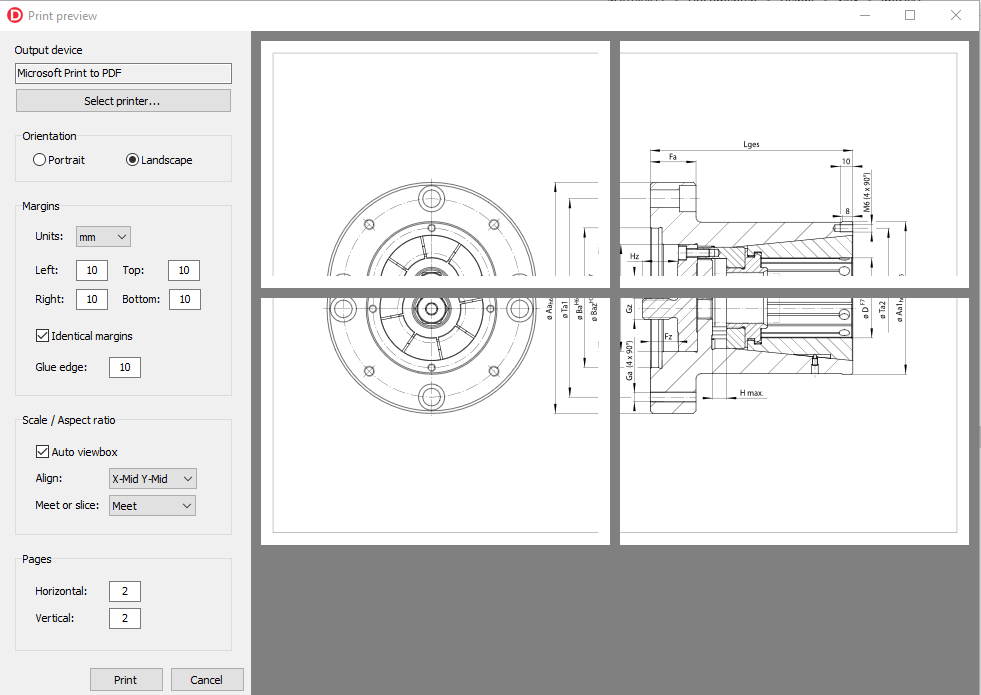
The picture at the start of this post shows a screenshot of the SVG print preview, which has several settings for defining the layout of the SVG on a page. For example, you can set margins and the scaling and alignment.

In can also print one SVG over several pages, in which case you can define a “glue edge”, so you can glue the pages together after printing.

The print preview example can be compiled with the full SVG control package update 8 or later and the latest versions of the SVG control demo package.

Render animated SVG to GIF, AVI or APNG

This example Delphi application demonstrates how to render an animated SVG to a GIF, AVI or animated PNG.

The application makes use of the following libraries:

For the SVG it uses the SVG control package or the demo version of the package.

For the animated PNG, the imaginglib by Marek Mauder

For the AVI, CreateAviFromBitmap by Francois Piette

For GIF, no external library is needed because it is part of the Delphi VCL.

The source code of the application can be found on delphi-svg-control-examples.

The SVG used in this example is “Steam engine slide-valve cylinder animation“.

Application layout

On the top left of the application form there is a TValueListEditor control where you can set the SVG input file, width en height and some other settings.

On the bottom left there is a TTabControl with another TValueListEditor where you can select the output format and some settings for the output.

Then on the top you can specify the “duration” for the animation in milliseconds and the “frames per second”.

The “duration” is something you have to find out yourself by inspecting the SVG file. SVG animations can be very complex, because parts of the animation can be triggered by events. In simple cases you can figure out the duration by looking at the “dur” attributes in the SVG.

For CSS animations, you look for the “animation-duration” property or the short hand version “animation“, which has several animation properties rolled into one property.

Of course, increasing the “frames per second” will result in a smoother animation but a larger output file.

The center pane of the application will display a preview of each frame while it is recorded. You start the recording with the button “Record”.

At the end of the recording, the application will save the output file to the file specified in the output settings.

Stepping through the SVG animation

For stepping through the SVG animation I have created a class TSVGFrameRenderer. Because we do not have to display the SVG animation in real time, the animation timer is not needed.

The total number of frames is calculated by:

FrameCount := Duration * FPS div 1000;

Where FPS is the “Frames per second”.

And the time in milliseconds between each frame is:

DeltaTime :=  1000 div FPS;

The input for the frame renderer is a “SVG root object”, specified by the interface ISVGRoot. The root object contains the parsed SVG file.

The root object also implements interface ISVGAnimationTimerTarget. This interface can be used to step through the SVG animation, for example:

var
  Target: ISVGAnimationTimerTarget;

...

// Get the animation target interface

if not Supports(SVGRoot, ISVGAnimationTimerTarget, Target) then
  Exit;

...

// Start the animation

Target.DoAnimationTimerStart;

...

// Advance the animation "Delay" milliseconds

Target.DoAnimationAdvanceFrame(Delay);

The frame render will render the SVG to a bitmap on each step.

The full code of the frame renderer can be found here.

Rendering to an animated PNG

For rendering the animated PNG we use the imaginglib by Marek Mauder. This is a library for reading, writing and converting many different image formats.

At the moment we use only one output parameter for the PNG animation: “AnimationLoops”. This specifies how many times the animation will repeat itself. A value of 0 means endless repetition.

procedure TSVGConvTargetApng.Convert(aFrameRenderer: TSVGFrameRenderer);
var
  DataArray: TDynImageDataArray;
  Meta: TMetadata;
  Format: TPNGFileFormat;
  Index: Integer;
begin
  // https://github.com/galfar/imaginglib

  SetLength(DataArray, 0);
  try
    if aFrameRenderer.RenderFirst then
    begin

      // Create an array to store the frame images

      SetLength(DataArray, aFrameRenderer.StepCount);

      try
        repeat

          // Convert the bitmap from the frame rendere to an image
          // and store it in the array

          ConvertBitmapToData(aFrameRenderer.Bitmap, DataArray[aFrameRenderer.Step]);

        until not aFrameRenderer.RenderNext;

      finally
        aFrameRenderer.RenderClose;
      end;
    end;

    // Create a meta object for PNG settings

    Meta := TMetadata.Create;
    try
      // Set "AnimationLoops" in the meta object

      Meta.SetMetaItemForSaving(SMetaAnimationLoops, AnimatedLoops);

      // Set the frame delay on each image

      for Index := 0 to Length(DataArray) - 1 do
        Meta.SetMetaItemForSaving(SMetaFrameDelay, 1000 / aFrameRenderer.FPS, Index);

      // Save the array to file in animated PNG format

      Format := TPNGFileFormat.Create(Meta);
      try
        Format.SaveToFile(FileName, DataArray);
      finally
        Format.Free;
      end;

    finally
      Meta.Free;
    end;

  finally
    FreeImagesInArray(DataArray);
  end;
end;

The resulting animated PNG looks like this (will only animate if your browser supports animated PNG).

The imaginglib doesn’t have components for displaying an animated PNG in Delphi (or Freepascal). Below is a very simplistic way to display the animated PNG based on a timer:

uses
  ...
  Imaging,
  ImagingComponents,
  ImagingNetworkGraphics
  ...

TForm1 = class(TForm)
...
  private
    FFrame: Integer;
    FDynImageDataArray: TDynImageDataArray;
  public
    procedure LoadPng(const aFilename: string);
...

procedure TForm1.FormCreate(Sender: TObject);
begin
  SetLength(FDynImageDataArray, 0);
  FFrame := 0;
end;

procedure TForm1.FormDestroy(Sender: TObject);
begin
  Finalize(FDynImageDataArray);
end;

procedure TForm1.LoadPng(const aFilename: string);
var
  PngFormat: TPNGFileFormat;
  DelayVar: Variant;
begin
  PngFormat := TPNGFileFormat.Create(nil);
  try
    // Load PNG in image array

    PngFormat.LoadFromFile(OpenDialog1.Filename, FDynImageDataArray);

    // Get delay from global meta

    DelayVar := GlobalMetadata.MetaItems[SMetaFrameDelay];
    if not VarIsNull(DelayVar) then
      Timer1.Interval := DelayVar;
  finally
    PngFormat.Free;
  end;

  // Start timer

  FFrame := 0;
  Timer1.Enabled := True;
end;

procedure TForm1.PaintBox1Paint(Sender: TObject);
var
  Bitmap: TBitmap;
begin
  if FFrame < Length(FDynImageDataArray) then
  begin
    Bitmap := TBitmap.Create;
    try
      ConvertDataToBitmap(FDynImageDataArray[FFrame], Bitmap);
      PaintBox1.Canvas.Draw(0, 0, Bitmap);
    finally
      Bitmap.Free;
    end;
  end;
end;

procedure TForm1.Timer1Timer(Sender: TObject);
begin
  PaintBox1.Repaint;

  if FFrame < Length(FDynImageDataArray) - 1 then
    Inc(FFrame)
  else
    FFrame := 0;
end;

Rendering to GIF

In this example we use the GIF functionality that is part of the Delphi VCL, but you could also use the imaginglib by Marek Mauder for this. I based the example below on the GIF animation demo on Andeas Melander’s website. The Gif also takes a parameter “AnimationLoops” for a finite or endless repetition. Also some other parameters which are explained in the Delphi help or on Andreas website.

procedure TSVGConvTargetGif.Convert(aFrameRenderer: TSVGFrameRenderer);
var
  GIFImage: TGifImage;
  GifFrame: TGIFFrame;
  GCE: TGIFGraphicControlExtension;
  LoopExt: TGIFAppExtNSLoop;
begin
  GIFImage := TGifImage.Create;
  try
    if aFrameRenderer.RenderFirst then
    begin
      try
        repeat
          // Add the bitmap to the gif image list

          GifFrame := GifImage.Add(aFrameRenderer.Bitmap);

          // Loop extension must be the first extension in the first frame

          if GifImage.Images.Count = 1 then
          begin
            LoopExt := TGIFAppExtNSLoop.Create(GifFrame);

            // Number of loops (0 = forever)

            LoopExt.Loops := AnimatedLoops;
          end;

          // Add Graphic Control Extension

          GCE := TGIFGraphicControlExtension.Create(GifFrame);

          // Delay is in hundreds of a second

          GCE.Delay := aFrameRenderer.Delay div 10;
          if Transparent then
          begin
            GCE.Transparent := True;
            GCE.TransparentColorIndex :=  GifFrame.Pixels[0, aFrameRenderer.Height - 1];
            GCE.Disposal := dmBackground;
          end;

        until not aFrameRenderer.RenderNext;

      finally
        aFrameRenderer.RenderClose;
      end;
    end;

    // Optimize Color map...

    if OptimizeColorMap then
      GifImage.OptimizeColorMap;

    // Optimize aGifImage frames...

    if OptimizeOptions <> [] then
      GifImage.Optimize(OptimizeOptions, rmNone, dmNearest, 0);

    if not GifImage.Empty then
      GifImage.SaveToFile(Filename);

  finally
    GifImage.Free;
  end;
end;

The GIF format is older technology. It doesn’t support transparency by alpha channel as the PNG format does. On the other hand, it is widely supported. You can sort of simulate transparency by setting the background colour of the SVG. Choose a colour that is not present in the SVG itself. Then set the output parameter “Transparent” to True. The resulting GIF looks like this:

Rendering to AVI

For rendering to AVI, we use the library CreateAviFromBitmap by Francois Piette. The only output setting for the AVI is a compression setting: “None” or “XVID”. “XVID” will only work if you have installed the necessary codec, as explained by Francois on his website.

The code for rendering to AVI is very simple:

rocedure TSVGConvTargetAvi.Convert(aFrameRenderer: TSVGFrameRenderer);
var
  Avi: TAviFromBitmaps;
  CompressionTag: FOURCC;
begin
  // http://francois-piette.blogspot.com/2013/07/creating-avi-file-from-bitmaps-using.html

  // Compression will only work if you have installed the necessary codecs
  // XVID compressor, download the setup from http://www.xvid.org

  CompressionTag := MKFOURCC('D', 'I', 'B', ' ');

  case Compression of
    acXVID: CompressionTag := MKFOURCC('x', 'v', 'i', 'd');
  end;


  Avi := TAviFromBitmaps.CreateAviFile(
    nil,
    Filename,
    CompressionTag,
    Cardinal(aFrameRenderer.FPS),
    1);
  try

    if aFrameRenderer.RenderFirst then
    begin
      try
        repeat
          // Add the bitmap to the avi

          Avi.AppendNewFrame(aFrameRenderer.Bitmap.Handle);

        until not aFrameRenderer.RenderNext;

      finally
        aFrameRenderer.RenderClose;
      end;
    end;

  finally
    Avi.Free;
  end;
end;

Rendering an animated SVG to PNG, GIF or AVI and then using these in your application has the advantage that these later formats do not use as much computing power as an animated might SVG might need.

Simple SVG animations are usually not a problem, but In SVG you can animate almost every attribute, also for example attributes on filters. Rendering SVG filters can be very expensive in terms of computing power, so it might not be possible to render frames fast enough for a smooth animation.

Also you might be less depended on specific fonts or other resources that are needed on the host computer for rendering the SVG.

On the other hand, the SVG file is much smaller. In this example the PNG file is 602KB, the AVI (uncompressed) is 17583KB and the GIF is 492KB. The SVG file is only 13KB.

SVG control package v2.4

In version 2.4 of the SVG control package the following functionality is added:

  • Support for SVG and CSS animation using SMIL
  • Converting “text” elements to “path” elements
  • Support for different XML vendor implementations

Support for SVG and CSS animation using SMIL

SVG can be added to SVG images by the “animate”, “set”, “animateMotion” and “animateTransform” elements. In CSS animation can be defined by “animate…” properties and the style rule “@keyframes”. SMIL is used to synchronize the animation of SVG animated elements and CSS animations.

Depending on the complexity of the SVG image, animating SVG may require a lot of computing power. Especially if pixelwise operations are included in the animation, for example clippaths, masks and filters. To reduce the load on the system and therefore enable a higher frame rate, some optimizations where added to version 2.4:

  • A caching system was added to the rendering system, so some values that where calculated in a previous frame can be used in the next.
  • SVG is a tree structure, in many animated SVG images, not all branches of the SVG image contain animations. So these branches are static an can be rendered to a bitmap buffer and don’t have to be rerendered every frame. This functionality is controlled by the rendering option [sroPersistentBuffers]
  • For VCL and Freepascal a new control, TSVG2WinControl, was added. This control does not support transparency and therefore the SVG image does not have to be blended with the background on every frame. In combination with render context “SVGDirect2d3D11”, this control will use a DirectX swap chain and can make more use of the GPU.

For controlling animations a new component, TSVG2AnimationTimer, was added to the package. This component starts/stops or paused/un-pauses animations and calculates framerates. One or more of the SVG controls can link to this component.

A more detailed description of the animation functionality can be found in the online help.

Below is a demonstration of some SVG animations that are animated with the SVG control package v2.4.

The following SVG images are used in the demo:

Converting “text” elements to “path” elements

For rendering text, fonts are needed and these have to be available on the system where the SVG is rendered. If this is not the case, the renderer will use a default font, which means that the SVG image is not exactly rendered as how it was intended.

One way around this, is to embed an SVG font in the SVG file.

Another way which is now available in v2.4, is to convert text to paths. The way to do this involves the following steps:

  • Render an SVG image with render option [sroTextToPath]
  • Make a copy of the SVG root object
  • Save the XML strings of SVG XML document of the copied SVG Root object

Details of this functionality can be found in the online help.

Support for different XML vendor implementations

In Delphi TXMLDocument is used as a wrapper for vendor specific DOM implementations. In version 2.4 of the package, TXMLDocument and TXMLNode are used as the base classes for the “rendering tree”. The DOM implementation on the other hand, represents the “document tree”.

So now different vendors can be used for parsing the document tree, if this is required. The SVG control package also has a DOM implementation available that is used by default, that has vendor name “SVG control DOM”.

TXMLNode can also represent attributes, however, because this makes parsing SVG very slow, this is suppressed. The package makes use of its own implementation of SVG attributes, also because these have special requirements for interpolation of values for animation.

Because of the large number of changes it was decided to create a new version of the package, but version 2.4 is available for all license holders of version 2.3 with no extra cost.

If you don’t have a license you can try out the demo packages, these are without the source code and only for Windows 32bit, but fully functional.

New functionality for SVG image list

In update 4 of the package, new functionality is added to the SVG image list to increase the number of images that can be created and also more options for exporting and linking to controls.

The SVG image list extends the functionality of the normal TImageList, in that it can automatically create all the images needed out of a list of scalable vector graphics.

Nowadays applications must be able to support monitor DPI scaling, so images are needed in multiple resolutions and also, images are needed that reflect a state, for example a “disabled” state.

To support this, two dimensions are added to the SVG image list: a list of “styles” and a list of “resolutions”.

So the number of images that can now be created with an SVG image list is:

Image count = SVG count * Style count * Resolution count

In the component editor, that is shown in the image above, the SVG’s and Styles are laid out in a grid.

Resolutions

How the resolutions are managed depend for a large part on the base TImagelist for Delphi VCL, FMX or Lazarus, from which the SVG image list is derived:

  • The VCL TImageList does not itself support multiple resolutions (but in Delphi 10.3 the TVirtualImageList and TImageCollection components where added that do).
  • The FMX TImageList is introduced in Delphi XE8 and supports multiple resolutions through the multi-resolution bitmap.
  • The Lazarus TImageList supports multiple resolutions from version 1.9 and above.

The SVG image list will render all images on all resolutions that are defined on the base TImageList. For VCL the resolutions can be defined with an extra list of resolutions or rendered “on demand”. See the online help for details.

Styles

The styles are created by modifying the original SVG. For modifying the SVG’s in the SVG image list the xml feature “Entities” is used. With an entity you can replace a piece of text in the body of an xml with something else. So you could replace an attribute, for example a color or a transformation, or you could replace an element, for example replace a rectangle for a circle.

The SVG image list has two means for modifying the SVG:

  • Defining an “Outer SVG” that embeds the original SVG by using the entity &cur_svg;. This can be used to modify the original SVG as a whole, for example by applying opacity or a filter.
  • Replacing parts of the original SVG with entities. These will show up in the “Style entity list”. In the Style entity list you can specify values for each entity.

On the Style page of the SVG image list, there are some default settings for “Outer SVG” available, for example a “Saturation” filter to apply a “Disabled” look, or a “Drop shadow” effect.

The other method requires a bit more work. For this you need to edit the original SVG. The image below shows some variations on a single SVG that can be created with this method. A example how to do this can be found in the online help.

Linking to controls

The SVG image list is derived from a normal TImageList, so controls that can link to a TImageList can also link to a SVG image list.

Some components and controls have several properties that can link to an image list depending on the state of the images, for example a TActionManager has four properties: Images, DisabledImages, LargeImages and LargeDisabledImages.

So we may want to have all the SVG’s and Styles in a central place but also link to these four separate properties of the TActionmanager. This can be done by using the “SVG Linked image list” as an intermediate.

The SVG linked image list has alle the functionality of a SVG image list except that it has no SVG or Style data of its own, it gets these from the parent SVG image list it is linked to. It also has a “ParentStyleIndex” property, with this we can select a Style from the parent SVG image list.

This is a bit like the TVirtualImageList and TImageCollection of Delphi 10.3 where SVG linked image list is a TVirtualImageList and the SVG image list is the TImageCollection.

An example is shown below. This is the VCL demo viewer application, it has a central SVG image list with two styles, one for normal images and one for disabled images.

Then there are two SVG linked image lists, one, “ilNormal” selects the normal images from the SVG image list and is connected to the “Images” property of the action manager, the other “ilDisabled” is connected to the “DisabledImages” property.

Exporting images

The SVG image list has the capability to create bitmap images from SVG’s. This only happens when SVG’s are added to the list or certain properties of the image list are changed, for example the “Width” or “Height”, otherwise it just behaves as a normal image list.

So it only makes sense to use a SVG image list, if you actually need to render images in runtime, otherwise you might as well use a normal TImageList in your application, because of course, the SVG rendering software is complex and if you don’t use it in your application it is basically dead weight.

So another use of the SVG image list is just to produce images that you export and subsequently import in a normal image list. The SVG image list has a number of properties to help with this for example for naming the exported files, so you can easily import them back in bulk.

The images of the SVG image list can be exported as Bmp, Png, JPeg or SVG files. The VCL and Lazarus versions also can export multi layered Windows Icons.

Upgrading the SVG control package

If you are already using an earlier version of the SVG control package, you will get some warnings about properties that are changed or maybe are removed. All the warnings should be accepted and all should be ok, but to be on the safe side, make a backup of your code including the previous version of the SVG control package before upgrading. See the change log for details.

The SVG icons used in the examples are from: https://github.com/icons8/flat-color-icons/tree/master/svg

Drawing outlines around SVG elements

The SVG control package offers a number of controls to display SVG graphics. But if you want more control over how SVG graphics are rendered or if you want to post process graphics, you can also use the lower level classes, interfaces and functions of the package.

Two of these interfaces are

ISVGRenderContext

and

ISVGRoot

ISVGRenderContext is a high quality canvas, very much like the Delphi Firemonkey canvas, but it has the advantage that you can use it in Delphi VCL also. It always draws to a bitmap which you have to supply.

It has most of the drawing functions that the Firemonkey canvas has. Functions like DrawCircle, DrawRect, FillRect, FillPath, ApplyFill, ApplyStroke, MultiplyMatrix BeginScene, EndScene and so on.

You can use the render context (RC) for example to add drawings before or after you render an SVG graphic, or you could just use it for high quality drawings, also supporting transparency, something Delphi VCL does not excel in.

ISVGRoot is the root of the tree of SVG elements of the SVG graphic, equivalent to the Document Object Model (DOM)  in an internet browser. This is created after parsing the SVG xml text and allows you to manipulate elements and parameters before actually rendering the graphic. You can also use it to measure element dimensions.

I’ll give an example here how you can use both to render an SVG graphic an then to post process the graphic to draw some outlines around some of the elements in the SVG graphic.

We use the following simple SVG graphic and we will draw outlines around the text, star group an rotated ellipse.

<?xml version="1.0" encoding="UTF-8" standalone="no"?>
<svg
  xmlns="http://www.w3.org/2000/svg"
  id="test_svg"
  version="1.1"
  height="320"
  width="480"
  viewBox="0 215 120 80">
  <g 
    id="layer1">
    <text
      id="txt" x="55" y="225" font-family="sans-serif" font-size="8">
      <tspan id="tspan1">A star group</tspan>
      <tspan id="tspan2" x="55" dy="1em">an ellipse</tspan>
      <tspan id="tspan3" x="55" dy="1em">and some text</tspan>
    </text>
    <ellipse
      id="ellipse" transform="rotate(25)" cx="200" cy="215" rx="25" ry="7.5" fill="#00ff00" stroke="#000000" stroke-width="0.75" />
    <g
      id="star_group">
      <path
        id="star1" fill="#ff2a2a" stroke="#000000" stroke-width="0.75"
        d="m 41.010416,262.03718 -4.104352,-0.60791 -3.016279,2.84909 -0.690161,-4.09132 -3.641728,-1.98824 3.677809,-1.92067 0.765567,-4.07789 2.963173,2.90429 4.114874,-0.53204 -1.846468,3.71562 z"
        />
      <path
        id="star2" fill="#ffcc00" stroke="#000000" stroke-width="0.75"
        d="m 25.31441,257.03553 -3.967414,-6.11754 -7.330735,-0.71095 4.676652,-5.60961 -1.579348,-7.09179 6.857743,2.6506 6.354646,-3.67203 -0.438334,7.24778 5.506734,4.82236 -7.128647,1.82876 z"
        />
    </g>
  </g>
</svg>

This SVG graphic looks like this

Now for the code.

In a new Delphi VCL application, using one form with a standard TButton and TImage control, on the OnClick of the button we do the following:

  1. First we will create an SVGRoot object and parse the SVG text
  2. Then we will calculate the size of the entire SVG and set the bitmap size accordingly
  3. Then we will render the SVG to the bitmap
  4. Then we will draw rectangles around the three elements
  5. Last we assign the bitmap to the TImage control

Step 1, create SVGRoot object and parse the SVG text.

uses
  System.UITypes,
  BVE.SVG2SaxParser,
  BVE.SVG2Intf,
  BVE.SVG2Context,
  BVE.SVG2Types,
  BVE.SVG2Elements,
  BVE.SVG2Elements.VCL;

const
  svg_text =
    '<?xml version="1.0" encoding="UTF-8" standalone="no"?>'
  + '<svg xmlns="http://www.w3.org/2000/svg" id="test_svg" version="1.1" width="480" height="320" viewBox="0 215 120 80">'
    + '<g id="layer1">'
      + '<text id="txt" x="55" y="225" font-family="sans-serif" font-size="8">'
        + '<tspan id="tspan1">A star group</tspan>'
        + '<tspan id="tspan2" x="55" dy="1em">an ellipse</tspan>'
        + '<tspan id="tspan3" x="55" dy="1em">and some text</tspan>'
      + '</text>'
      + '<ellipse id="ellipse" transform="rotate(25)" cx="200" cy="215" rx="25" ry="7.5" fill="#00ff00" stroke="#000000" stroke-width="0.75" />'
      + '<g id="star_group">'
       + ' <path id="star1" fill="#ff2a2a" stroke="#000000" stroke-width="0.75"'
          + ' d="m 41.010416,262.03718 -4.104352,-0.60791 -3.016279,2.84909 -0.690161,-4.09132 -3.641728,-1.98824 3.677809,-1.92067 0.765567,-4.07789 2.963173,2.90429 4.114874,-0.53204 -1.846468,3.71562 z" />'
        + '<path id="star2" fill="#ffcc00" stroke="#000000" stroke-width="0.75"'
          + ' d="m 25.31441,257.03553 -3.967414,-6.11754 -7.330735,-0.71095 4.676652,-5.60961 -1.579348,-7.09179 6.857743,2.6506 6.354646,-3.67203 -0.438334,7.24778 5.506734,4.82236 -7.128647,1.82876 z" />'
      + '</g>'
    + '</g>'
  + '</svg>';

procedure TForm1.Button1Click(Sender: TObject);
var
  SVGRoot: ISVGRoot;
  sl: TStringList;
  SVGParser: TSVGSaxParser;
  Bitmap: TBitmap;
  RC: ISVGRenderContext;
  ParentBounds, Bounds: TSVGRect;
begin

  // Step 1
  // Create a VCL SVG Root object

  SVGRoot := TSVGRootVCL.Create;


  // Put the SVG text in a stringlist and parse

  sl := TStringList.Create;
  SVGParser := TSVGSaxParser.Create(nil);
  try
    sl.Text := svg_text; 

    SVGParser.Parse(sl, SVGRoot);

  finally
    SVGParser.Free;
    sl.Free;
  end;


  //..

end;

Step 2, calculate the size of the entire SVG and set the bitmap size accordingly

Next we want to know the dimensions of the SVG graphic. In this case it is not very difficult because the svg element has a with (480) and a height(320) defined. But for this example I’ll show how to calculate the size of an arbitrary SVG graphic.

The ISVGRoot interface has a method “CalcIntrinsicSize”  for calculating the outer dimensions of an SVG graphic.

This method is defined as follows:

 function CalcIntrinsicSize(aRenderContext: ISVGRenderContext; const aParentBounds: TSVGRect): TSVGRect;

So it needs a render context and the bounds of a parent object, this is the outer container. The function returns a rectangle with the dimensions of the SVG graphic.

Why does it need a render context? Because the SVG graphic may contain text and it needs a render context to have access to the font system.

The aParentBounds is used in cases where the SVG size is a percentage of it’s parent or container object.

So to use this we need to create a render context first. Since we don’t have to actually render the SVG yet, we can create a render context based on an arbitrary sized bitmap, so we take a bitmap of size 1 by 1.

procedure TForm1.Button1Click(Sender: TObject);
var
  SVGRoot: ISVGRoot;
  sl: TStringList;
  SVGParser: TSVGSaxParser;
  Bitmap: TBitmap;
  RC: ISVGRenderContext;
  ParentBounds, Bounds: TSVGRect;
begin
  
  // Step 1
  //..

  // Step 2
  // Create a bitmap, we don't know how big it needs to be, so initially
  // we make it the minimum size: 1 by 1

  Bitmap := TBitmap.Create;
  try

    Bitmap.SetSize(1, 1);

    // Now create a render context for the bitmap

    RC := TSVGRenderContextManager.CreateRenderContextBitmap(Bitmap);

    // Define some parent bounds, in case the SVG graphic has dimensions in percentages

    ParentBounds := SVGRect(0, 0, Image1.Width, Image1.Height);

    // Now we can calculate the dimensions of the SVG graphic

    Bounds := SVGRoot.CalcIntrinsicSize(RC, ParentBounds);

    // Resize the bitmap and make it 32bit transparent

    Bitmap.SetSize(Round(Bounds.Width), Round(Bounds.Height));
    Bitmap.PixelFormat := TPixelFormat.pf32bit;
    Bitmap.AlphaFormat := TAlphaFormat.afPremultiplied;

    // Recreate the render context with the newly sized Bitmap!!

    RC := TSVGRenderContextManager.CreateRenderContextBitmap(Bitmap);

    //..

  finally
    Bitmap.Free;
  end;
end;

Step 3, render the SVG to the bitmap

Now we are going to render the SVG to the bitmap using ISVGRoot and ISVGRenderContext.

procedure TForm1.Button1Click(Sender: TObject);
var
  SVGRoot: ISVGRoot;
  sl: TStringList;
  SVGParser: TSVGSaxParser;
  Bitmap: TBitmap;
  RC: ISVGRenderContext;
  ParentBounds, Bounds: TSVGRect;
begin
  // Step 1
  //..

  // Step 2
  //..
  
    // Step 3
    // Draw the SVG on the bitmap

    RC.BeginScene;
    try
      RC.Clear(0); // Clear the bitmap with transparent color
      RC.Matrix := TSVGMatrix.CreateIdentity;

      SVGRenderToRenderContext(
        SVGRoot,
        RC,
        Bounds.Width* 2,
        Bounds.Height,
        [sroEvents],   // Force the creation of an object state tree
        FALSE          // No auto scaling in this case
        );

    finally
      RC.EndScene;
    end;

    // ..

  finally
    Bitmap.Free;
  end;
end;

So just as with drawing on a Firemonkey canvas, we need to enclose any drawing with BeginScene and EndScene commands. We could also modify the matrix of the render context to scale or rotate or translate the SVG graphic.

The global procedure “SVGRenderToRenderContext” is used to draw the SVG contained in “SVGRoot” to the render context “RC”.

This procedure is defined as follows:

procedure SVGRenderToRenderContext(
  aSVGRoot: ISVGRoot;
  aRenderContext: ISVGRenderContext;
  const aWidth, aHeight: TSVGFloat;
  const aRenderOptions: TSVGRenderOptions = [sroFilters, sroClippath];
  const aAutoViewBox: boolean = True;
  const aAspectRatioAlign: TSVGAspectRatioAlign = arXMidYMid;
  const aAspectRatioMeetOrSlice: TSVGAspectRatioMeetOrSlice = arMeet);

The parameter “aRenderOptions” can have a combination of the following settings:

  • sroFilters: SVG filters will be rendered if these are defined in the SVG graphic
  • sroClippath: clippaths will be rendered if these are defined in the SVG graphic
  • sroEvents: mouse pointer events will be enabled for the SVG graphic, for this a Object state tree will be generated

Because filters, clippaths en events need extra, in some cases a lot of resources, they are made optional.

The last option “sroEvents” is interesting if we want to have measurements of individual elements in the SVG graphic. If we want to enable mouse pointer events, we need to know the dimensions of each visible element. The renderer will in that case create a so called “ObjectState” tree , while rendering the SVG graphic.

The “ObjectState” tree will contain a ScreenBBox (bounding box in screen dimensions) of every element visible on the screen. Note that sometimes an element can be drawn multiple times on the screen, if it is referenced by a “use” element. In that case it will be present more than once in the Object State tree.

So we will use the “ObjectState” tree to draw outlines around elements on the rendered SVG.

Step 4, draw rectangles around the three elements and step 5, assign bitmap to TImage control

procedure TForm1.Button1Click(Sender: TObject);
var
  SVGRoot: ISVGRoot;
  sl: TStringList;
  SVGParser: TSVGSaxParser;
  Bitmap: TBitmap;
  RC: ISVGRenderContext;
  ParentBounds, Bounds: TSVGRect;
  StateRoot, State: ISVGObjectState;
  Stroke: TSVGBrush;

  function FindID(aParent: ISVGObjectState; const aID: string): ISVGObjectState;
  var
    Child: ISVGObjectState;
  begin
    // Find first occurence of aID in object state tree

    for Child in aParent.Children do
    begin
      if Child.SVGObject.ID = aID then
      begin
        Result := Child;
        Exit;
      end else
        Result := FindID(Child, aID);
    end;
  end;

begin
  // Step 1
  // ..


  // Step 2
  // ..

    // Step 3
    // Draw the SVG on the bitmap

    RC.BeginScene;
    try
      RC.Clear(0); // Clear the bitmap with transparent color
      RC.Matrix := TSVGMatrix.CreateIdentity;

      SVGRenderToRenderContext(
        SVGRoot,
        RC,
        Bounds.Width* 2,
        Bounds.Height,
        [sroEvents],   // Force the creation of an object state tree
        FALSE          // No auto scaling in this case
        );

      // Step 4
      // Create a brush for stroking the outline

      // Get a reference to the object state tree

      StateRoot := SVGRoot.SVG.ObjectStateRoot;

      // Find the text element on ID and return the screen bounding box

      State := FindID(StateRoot, 'txt');
      if assigned(State) then
      begin
        // Get the screen bounds of the element

        Bounds := State.ScreenBBox;

        // Grow the box a bit

        Bounds.Inflate(5, 5);

        RC.ApplyStroke(TSVGSolidBrush.Create(SVGColorRed), 2.0);

        // Draw a rectangle with rounded corners around the element

        RC.DrawRect(Bounds, 5, 5);
      end;

      // Find the star group element on ID and return the screen bounding box

      State := FindID(StateRoot, 'star_group');
      if assigned(State) then
      begin
        Bounds := State.ScreenBBox;
        Bounds.Inflate(5, 5);

        RC.ApplyStroke(TSVGSolidBrush.Create(SVGColorBlue), 2.0);

        RC.DrawRect(Bounds, 5, 5);
      end;

      // Find the ellipse element on ID and return the screen bounding box

      State := FindID(StateRoot, 'ellipse');
      if assigned(State) then
      begin
        Bounds := State.ScreenBBox;
        Bounds.Inflate(5, 5);

        RC.ApplyStroke(TSVGSolidBrush.Create(SVGColorGreen), 2.0);

        RC.DrawRect(Bounds, 5, 5);
      end;

    finally
      RC.EndScene;
    end;

    // Step 5
    // Assign to Image1

    Image1.Picture.Assign(Bitmap);
  finally
    Bitmap.Free;
  end;
end;

This produces the following output on the VCL form.

Sources can be found on github. To compile the examples, you need the demo or the full version of the SVG control package.

Save bitmap with transparency as .png in VCL

Here is an example how to save a bitmap containing an alpha channel as a .png image using Delphi VCL.

In Delphi VCL you can use the TPngImage component to work with .png images. The only problem is that if you assign a bitmap to a TPngImage using PngImage.Assign(Bitmap) the alpha channel is lost.

I found the following solution thanks to this discussion on a German forum. So in stead of assigning the bitmap to the TPngImage object, you create a new blank TPngImage with alpha channel enabled and draw the bitmap on the TPngImage canvas.

After that you copy the alpha channel of the bitmap to the TPngImage in a separate step.

So in this example I render an SVG image to a bitmap and save the bitmap as a .png image (thanks to Thomas Wassermann).

[code language=”Delphi”]
unit Unit1;

interface

uses
  Winapi.Windows, Winapi.Messages, System.SysUtils, System.Variants, System.Classes, Vcl.Graphics,
  Vcl.Controls, Vcl.Forms, Vcl.Dialogs, Vcl.StdCtrls;

type
  TForm1 = class(TForm)
    Button1: TButton;
    OpenDialog1: TOpenDialog;
    procedure Button1Click(Sender: TObject);
  private
    { Private declarations }
  public
    { Public declarations }
  end;

var
  Form1: TForm1;

implementation
uses
  BVE.SVG2SaxParser,
  BVE.SVG2Intf,
  BVE.SVG2Types,
  BVE.SVG2ELements.VCL,
  Vcl.Imaging.pngimage;

{$R *.dfm}

// Source: http://www.entwickler-ecke.de/topic_Bitmap+pf32bit+mit+Alpha+afPremultipied+zu+PNG+speichern_103159,0.html

type
  TRGB = packed record B, G, R: byte end;
  TRGBA = packed record B, G, R, A: byte end;
  TRGBAArray = array[0..0] of TRGBA;

function PNG4TransparentBitMap(aBitmap:TBitmap): TPNGImage;
var
  X, Y: integer;
  BmpRGBA: ^TRGBAArray;
  PngRGB: ^TRGB;
begin
  //201011 Thomas Wassermann

  Result := TPNGImage.CreateBlank(COLOR_RGBALPHA, 8, aBitmap.Width , aBitmap.Height);

  Result.CreateAlpha;
  Result.Canvas.CopyMode:= cmSrcCopy;
  Result.Canvas.Draw(0, 0, aBitmap);

  for Y := 0 to Pred(aBitmap.Height) do
  begin
    BmpRGBA := aBitmap.ScanLine[Y];
    PngRGB:= Result.Scanline[Y];

    for X := 0 to Pred(aBitmap.width) do
    begin
      Result.AlphaScanline[Y][X] :=  BmpRGBA[X].A;
      if aBitmap.AlphaFormat in [afDefined, afPremultiplied] then
      begin
        if BmpRGBA[X].A <> 0 then
        begin
          PngRGB^.B := Round(BmpRGBA[X].B / BmpRGBA[X].A * 255);
          PngRGB^.R := Round(BmpRGBA[X].R / BmpRGBA[X].A * 255);
          PngRGB^.G := Round(BmpRGBA[X].G / BmpRGBA[X].A * 255);
        end else begin
          PngRGB^.B := Round(BmpRGBA[X].B * 255);
          PngRGB^.R := Round(BmpRGBA[X].R * 255);
          PngRGB^.G := Round(BmpRGBA[X].G * 255);
        end;
      end;
      Inc(PngRGB);
    end;
  end;
end;

procedure TForm1.Button1Click(Sender: TObject);
var
  FileName: string;
  SVGParser: TSVGSaxParser;
  SVGRoot: ISVGRoot;
  Bitmap: TBitmap;
  Png : TPngImage;
begin
  if OpenDialog1.Execute then
  begin
    FileName := OpenDialog1.FileName;

    // Create a root to store the SVG rendering tree

    SVGRoot := TSVGRootVCL.Create;

    // Create a SAX parser instance

    SVGParser := TSVGSaxParser.Create(nil);
    try

      // Parse SVG document and build the rendering tree

      SVGParser.Parse(”, FileName, SVGRoot);

      // Create a bitmap

      Bitmap := TBitmap.Create;
      try
        Bitmap.PixelFormat := TPixelFormat.pf32bit;   // 32bit bitmap
        Bitmap.AlphaFormat := TAlphaFormat.afDefined; // Enable alpha channel

        Bitmap.SetSize(480, 320);            // Set desired size
        Bitmap.Canvas.Brush.Color := clNone; // Fill background with transparent
        Bitmap.Canvas.FillRect(Rect(0, 0, 480, 320));

        // Render the SVG onto the bitmap

        SVGRenderToBitmap(
          SVGRoot, // The root containing the rendering tree
          Bitmap   // The destination bitmap
          );

        // Create the png component

        Png := PNG4TransparentBitMap(Bitmap);
        try
          FileName := ChangeFileExt(FileName, ‘.png’);
          Png.SaveToFile(FileName);
        finally
          Png.Free;
        end;

      finally
        Bitmap.Free;
      end;

    finally
      SVGParser.Free;
    end;
  end;
end;

end.

[/code]


Enable transparency with TSVG2ImageList on VCL

There was a little bug in the package which prevented the proper rendering of images with transparency on the VCL TButton, so I uploaded a new fix which corrects this. After download of the fixed package you should rebuild the packages. The demo packages are update also.

In this post I would like to show how you can set properties on the TSVG2ImageList to enable transparency.

First there is the question what type of button you should select from the Tool Palette in the Delphi IDE. There is a TButton, a TBitBtn and a TSpeedButton.

It turns out that the TBitBtn and TSpeedButton are legacy controls and you should avoid using these in new applications. The illustration below shows why:

TSVG2ImageList1

There is  a Fuchsia color border on the TBitBtn and TSpeedButton control, that is because it uses the old windows method of simulating transparency by using the left (or right, not sure) bottom pixel as a transparency color. Before it copies the image from the image list, it clears the target area with color Fuchsia. On the pixels that should be semi transparent this Fuchsia color seeps through.

So TBitBtn and TSpeedButton should be avoided, the TButton, shows the correct image.

In this test application linked the image list to the ActionManager1 and added a couple of actions. On each action I set the ImageIndex of the corresponding image in the SVG2ImageList. Next linked one of the Actions to TButton.

On the TButton you also have to set the “Images” property to link to an image list. Then you have the option to set a number of image index properties on the TButton to show different images depending on the state of the button.

Finally here are the properties of the TSVG2ImageList to enable transparency:

TSVG2ImageList2

All color settings, especially “BkColor” should be set to “clNone” and “ColorDepth” should be set to “cd32Bit”.